
What is an SSL certificate?
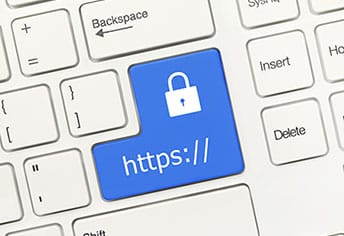
SSL stands for Secure Sockets Layer, a global standard security technology that enables encrypted communication between a web browser and a web server. It is utilized by millions1 of online businesses and individuals to decrease the risk of sensitive information (e.g., credit card numbers, usernames, passwords, emails, etc.) from being stolen or tampered with by hackers and identity thieves. In essence, SSL allows for a private “conversation” just between the two intended parties.
To create this secure connection, an SSL certificate (also referred to as a “digital certificate”) is installed on a web server and serves two functions:
- It authenticates the identity of the website (this guarantees visitors that they’re not on a bogus site)
- It encrypts the data that’s being transmitted
Are all SSL certificates the same?
No.
There are many different types of SSL certificates based on the number of domain names or subdomains owned, such as:
- Single – secures one fully-qualified domain name or subdomain name
- Wildcard - covers one domain name and an unlimited number of its subdomains
- Multi-Domain – secures multiple domain names
and the level of validation needed, such as:
- Domain Validation – this level is the least expensive, and covers basic encryption and verification of the ownership of the domain name registration. This type of certificate usually takes a few minutes to several hours to receive.
- Organization Validation – in addition to basic encryption and verification of ownership of the domain name registration, certain details of the owner (e.g., name and address) are authenticated. This type of certificate usually takes a few hours to several days to receive.
- Extended Validation (EV) – this provides the highest degree of security because of the thorough examination that is conducted before this certificate is issued (and as strictly specified in guidelines set by the SSL certification industry’s governing consortium). In addition to ownership of the domain name registration and entity authentication, the legal, physical and operational existence of the entity is verified. This type of certificate usually takes a few days to several weeks to receive.
Who may need an SSL certificate?
Any individual or organization that uses their website to require, receive, process, collect, store, or display confidential or sensitive information. Some examples of this information are:
- logins and passwords
- financial information (e.g., credit card numbers, bank accounts)
- personal data (e.g., names, addresses, social security numbers, birth dates)
- proprietary information
- legal documents and contracts
- client lists
- medical records
Where can you get SSL certificates?
Probably the most important part of an SSL certificate is where it comes from. SSL certificates are issued by Certificate Authorities (CAs), organizations that are trusted to verify the identity and legitimacy of any entity requesting a certificate.
The CA’s role is to accept certificate applications, authenticate applications, issue certificates, and maintain status information on certificates issued.
You may also be able to purchase digital certificates from a domain name registrar or website hosting provider.
Keep in mind:
When choosing the right SSL provider, consider the fact that users’ web browsers normally keep a cached list of trusted CAs on file – so if a digital certificate is signed by an entity that’s not on the “approved” list, the browser will send a warning message to the user that the website may not be trustworthy.
How will visitors know my site has an SSL certificate?
There are four visual clues:
- Padlock to the left of a URL
- https URL prefix instead of http
- A trust seal
- A green address bar (when an EV SSL certificate is issued)
1 SSL Shopper. What is SSL? Accessed Feb. 17, 2021.